
Once your Seekube project manager has created the event on the platform, you are responsible for adding each participating company and its recruiters to the job fair in two steps:
- Add or create the company stand at the event
- Add at least one team member to the stand.
This article will also show you how to:
- Remove a company stand from a job fair
- Delete a recruiter from the event.
ADDING OR CREATING A STAND AT THE EVENT
Some of your companies will already have a stand on the platform. If this is the case, simply find it in our database and add it to the event:
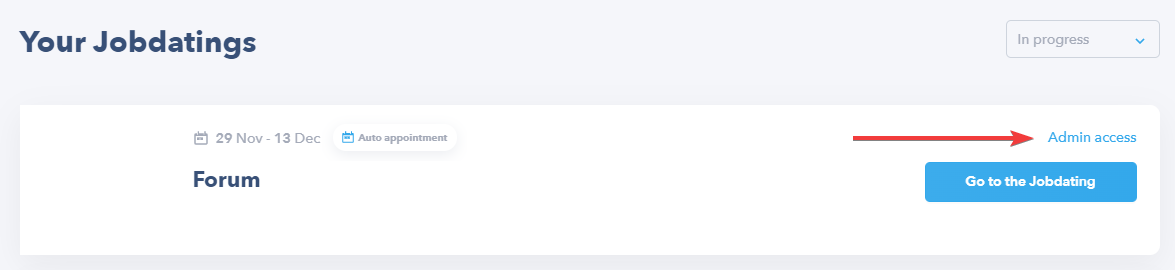
- Once you have logged in to your Seekube account, go to the homepage and click on Admin Access on the event card to access the organiser dashboard:
- Go to the Companies tab and select Add Company.
- You will then be able to add an existing company by entering the email address of a team member or the name of the company:
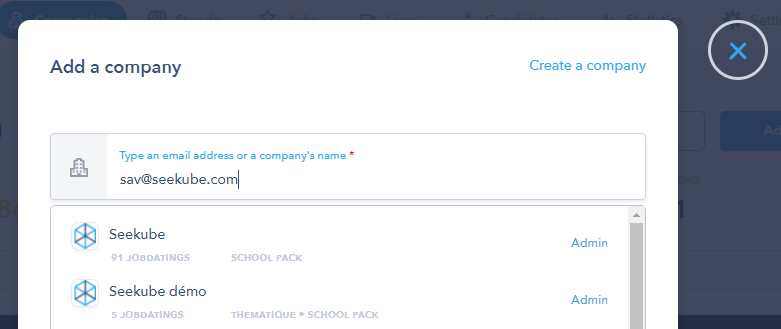
💡 No search results? Click on Create Company and enter the name of the stand to create a new organisation on the platform (if it already exists, it will be suggested to you):
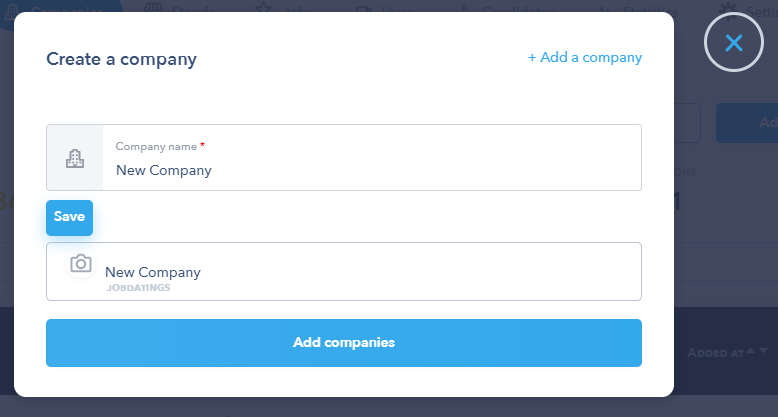
- Once the company has been selected or created, confirm the addition of the stand by clicking on Add Companies!
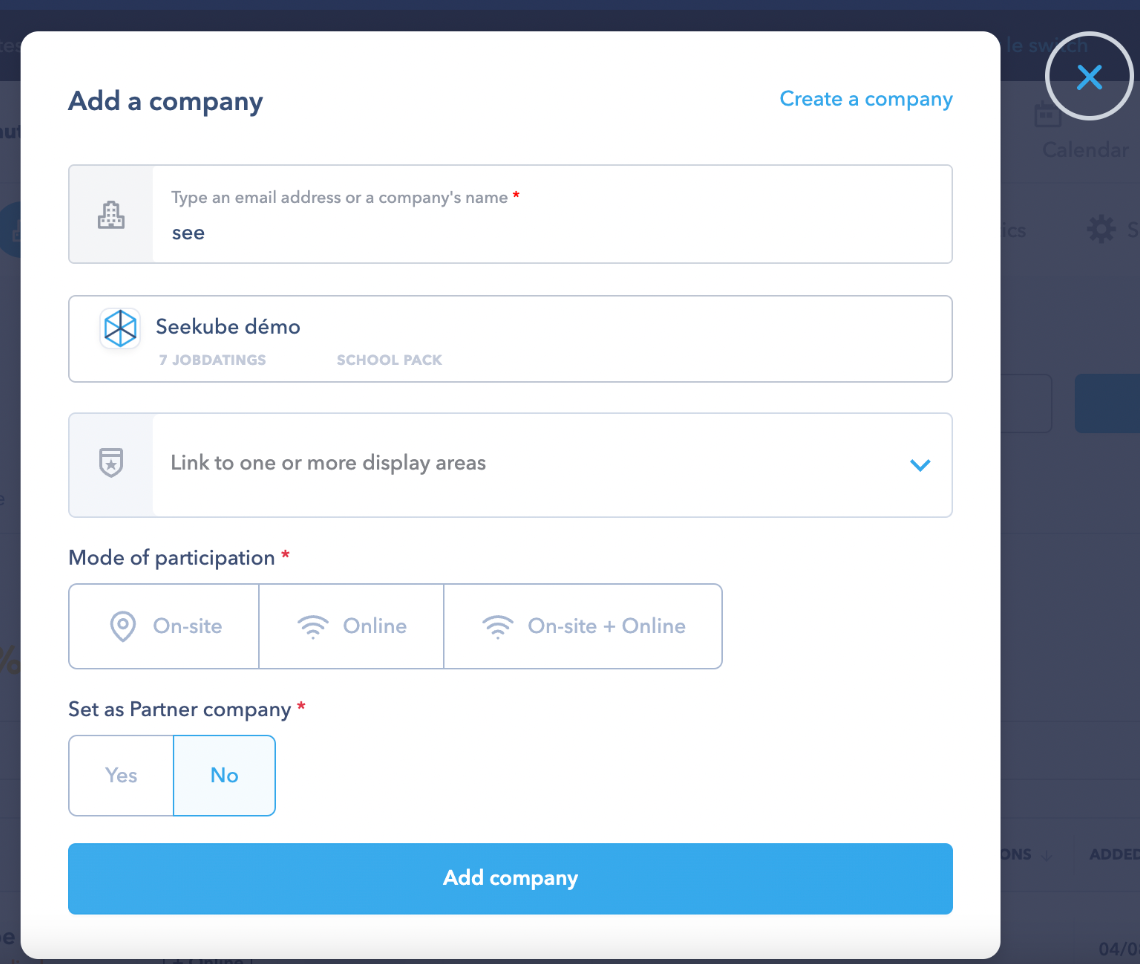
🚨 According to the settings added on your event, you will also have to :
- Associate it with one or mores corners on your event;
- Choose and define participation mode : either virtual, on-site, or both for hybrid events;
- Define if the company have to be highlighted on the event.
🚨 You have to add at least one team member to the stand even if you searched for the company using the email address of a team member with a Seekube account.
ADDING A TEAM MEMBER TO THE COMPANY STAND
- Once you have added the company, add the main team member to the stand using their email address by clicking on the relevant action button:
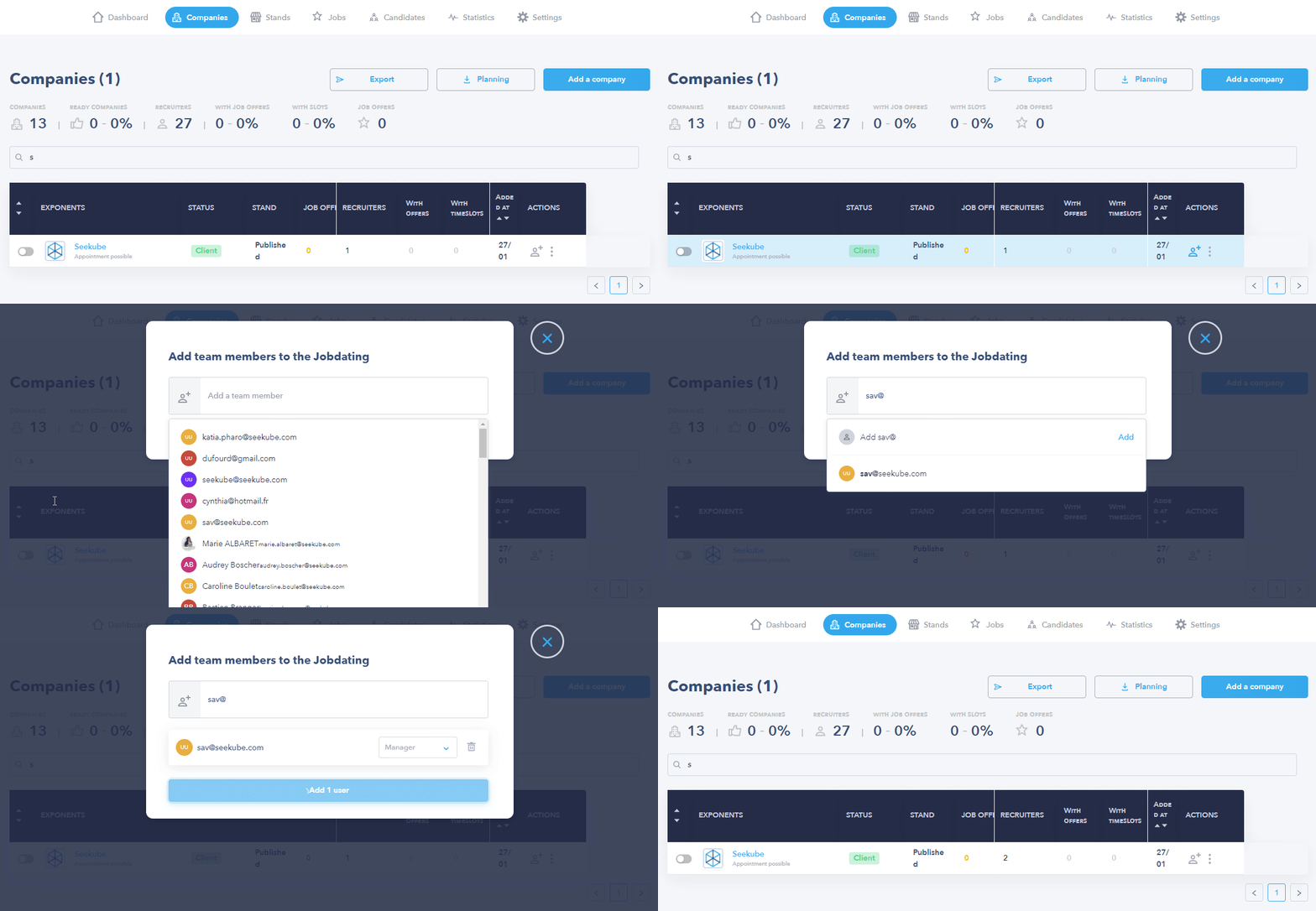
👉 If the team member does not yet have a Seekube account, they will be emailed an invitation link to confirm their participation, complete their recruiter profile and access the event.
👉 If the team member already has a completed Seekube account, they will receive an email notifying them that they have been added to the event. All they have to do then is log in to seekube.com with their email address and password to access the event from their homepage.
MODIFYING PARTICIPATION MODE FOR A COMPANY (HYBRID EVENT)
As an organiser of a hybrid event, you have the possibility to modify the participation mode of a company on your event. These different modes are : On site, Virtual, On site + Virtual.
If a company already added to your event want to be added to another participation mode or don't want to participate with a specific mode anymore, you can do these changes directly on the platform.
To change the participation mode of a company on your event :
- Go to your Company tab of your Organiser dashboard;
- In the search bar, type the name of the company or the name of a recruiter on the Stand to have access to it;
- Click on the three small dots on the line of the stand to modify, then click on Change participation mode :
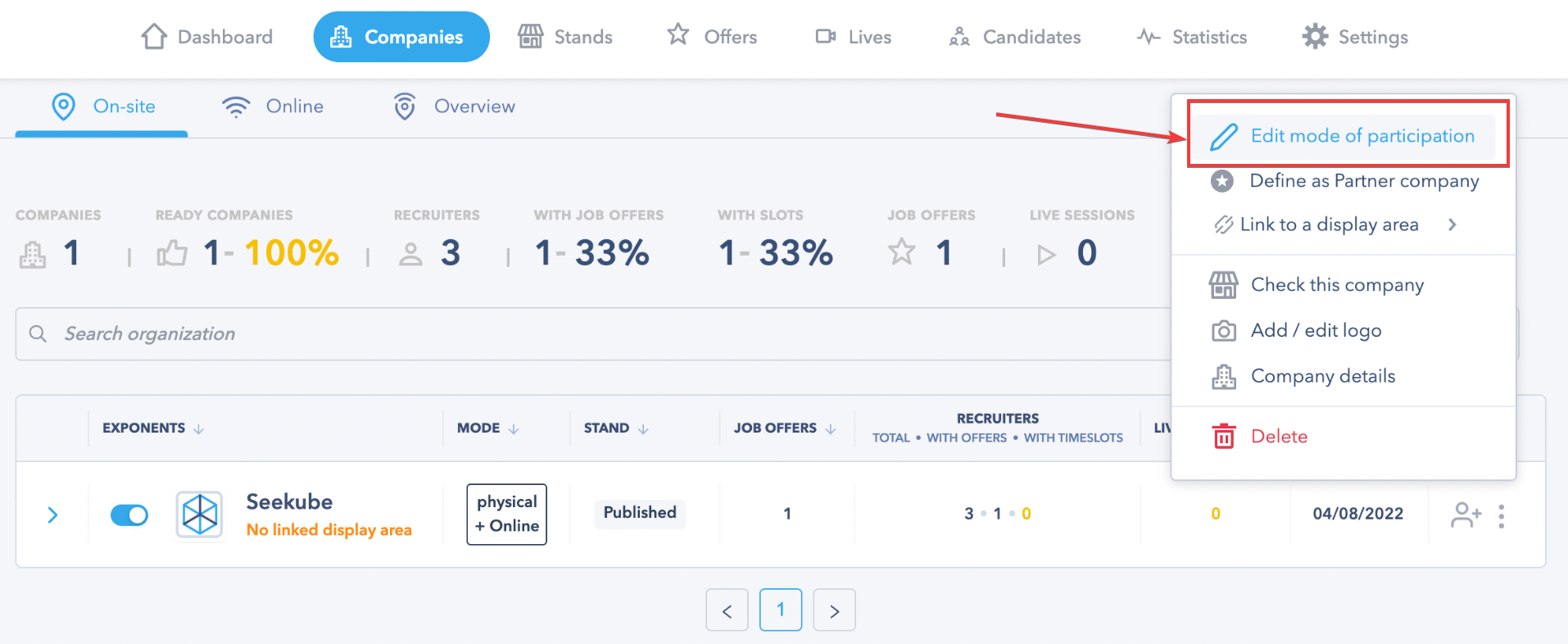
- A window will open, giving you the possibility to choose the different participation modes needed, once modified, you can confirm !
🚨 Removing a company from a participation mode cancel all their timeslots and interviews for this participation mode. It also reduce the visibility of their offers to the candidates participating in the same mode as the company.
REMOVING A COMPANY FROM THE EVENT
🚨 This removes the company stand and any registered team members from the event. If you only want to remove one recruiter from a stand, click here.
To remove a participating company from the event:
- Go to the Companies tab of your organiser dashboard.
- In the search box, type the name of the company or a team member on the stand you want to remove from the event.
-
Click on the three small dots on the row of the stand you want to remove and select Delete:
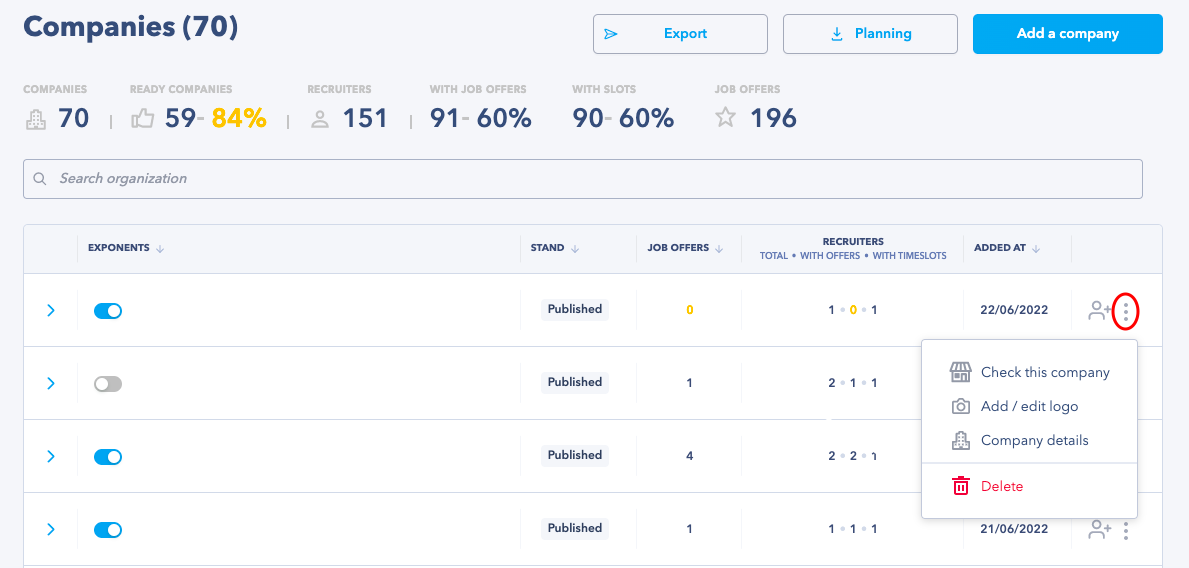
💡 This will not delete the stand from the platform or the team member's account; it simply cancels the company's participation at your event.
REMOVING A RECRUITER FROM THE EVENT
To remove a recruiter from the event:
- Go to the Companies tab of your organiser dashboard.
- In the search box, type the name, email address or company name of the team member you want to remove.
- Open the team details by clicking on the “>” sign next to the exponent’s name, pass your cursor on the three small dots on the line of the person you want to delete and select Delete of the Jobdating
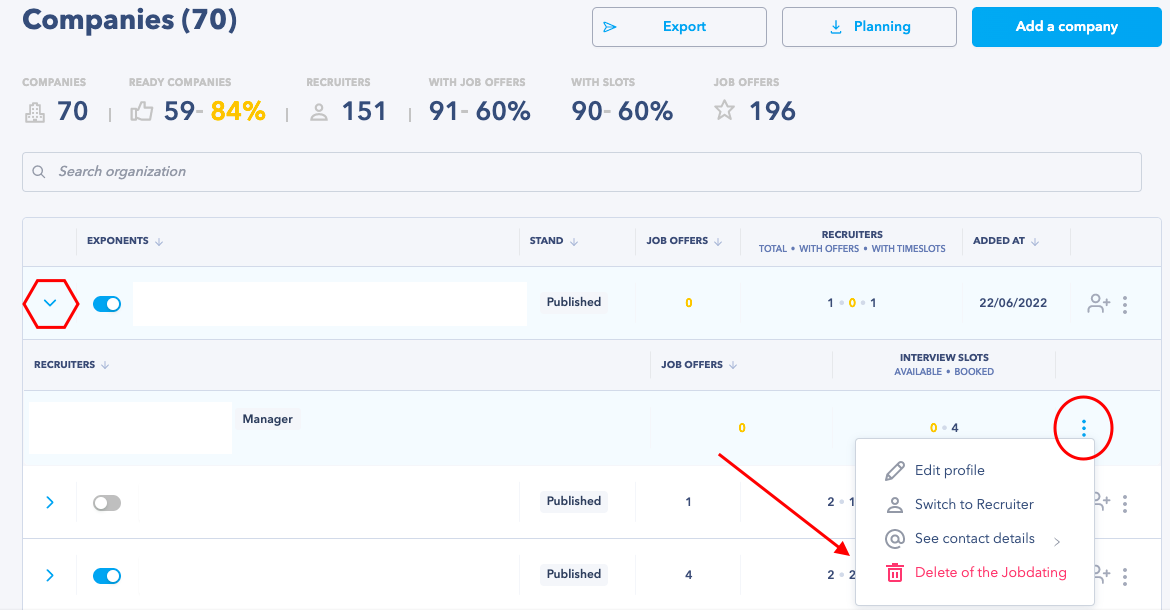
💡 This does not delete the person's account or remove them from the company; it simply removes them from the event.
🖇 Feel free to navigate the Help Center created for your recruiters and candidates via this link : help.seekube.com !