
You can see your partner companies' stands on your organiser dashboard, along with the jobs posted by the different recruiters taking part in the event.
VIEWING THE STANDS
To see the stand of one of your participating companies (whether it has been published or is still in draft form), go to the Stands tab on your dashboard:
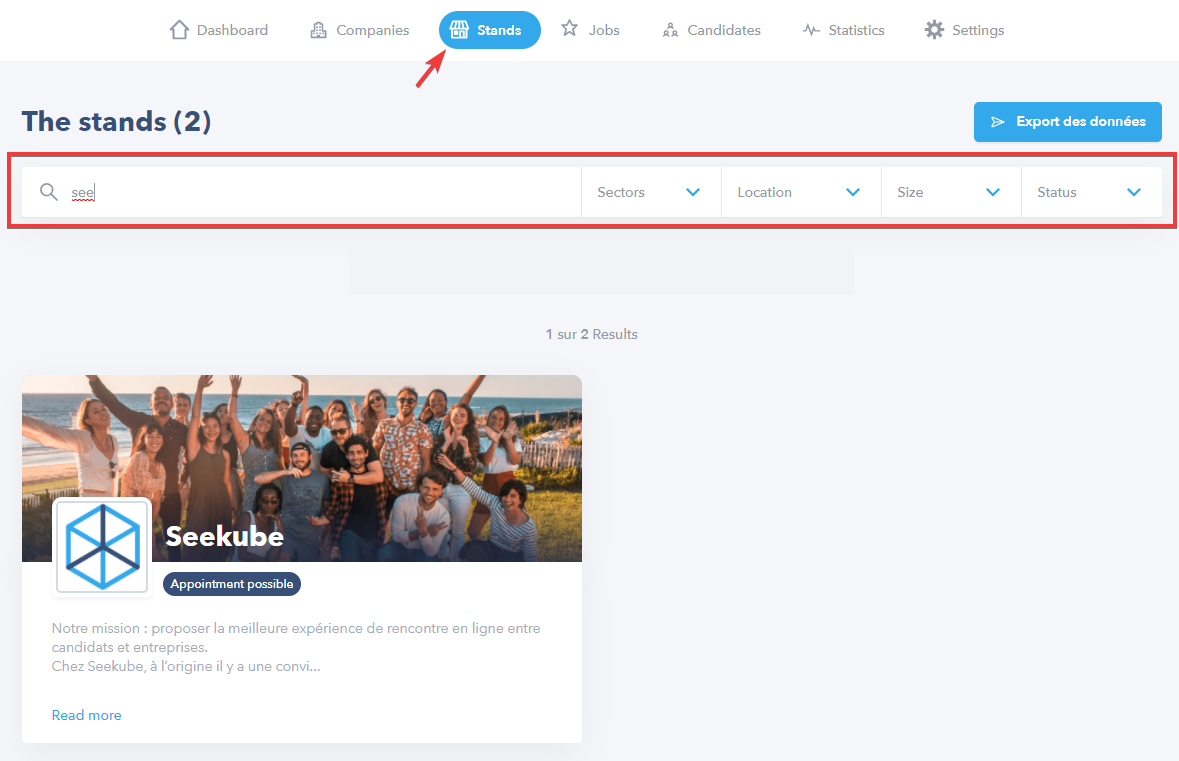
The search results can be filtered by keyword, business sector, location, company size or stand status (published or draft).
You can see the following key information about the stand (items marked with an asterisk are mandatory to publish the stand):
- The name of the company*
- A logo and cover photo*
- Its business sector(s)*
- The number of employees*
- A link to the company website* and its careers site
- Company description* and any little extras
- And lastly, photos and/or videos.
🚨 If a company has not added one of the mandatory elements shown above, it cannot publish its stand and it will not be visible to candidates. From the Stand tab on your dashboard you can see which elements are missing from your companies' stands and guide them as to what they still need to add.
💡 Candidates can also access the job offers and conferences published by the company from its stand.
👉 The Data Export button can be used to download all the stand information for companies participating in your event in Excel format (.xlsx).
VIEWING POSTED JOBS
To see the jobs posted by participating companies at an event, go to the Job Offers tab of your dashboard:
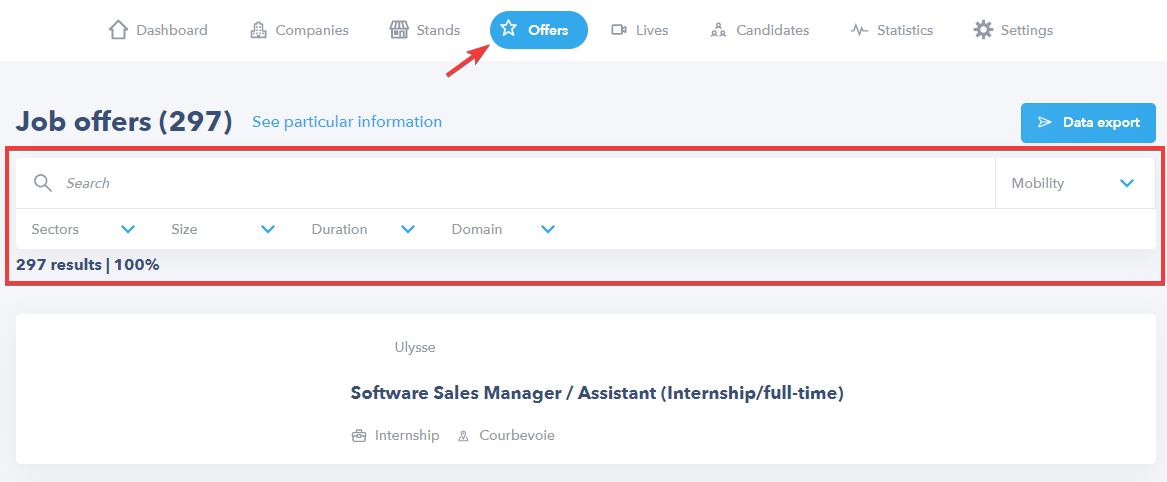
The search results can be filtered by keyword, business sector, company size or any other filter criteria specific to your event that have been predefined with your Seekube project manager.
You can see the following key information about a job offer:
- The name of the company
- Its business sector(s)
- The number of employees
- A link to the company website and its careers site
- Company description and any little extras
- And any other filter criteria specific to your event that have been predefined with your project manager.
💡 The Data Export button can be used to download all the job offer information for companies participating in your event in Excel format (.xlsx).
🖇 Feel free to navigate the Help Center created for your recruiters and candidates via this link : help.seekube.com !