
In order to be found by candidates and hold interviews, each recruiter with a stand must:
- Make sure their company stand is published
- Post at least one job (for which they are the interviewer)
- Enter availability slots in their calendar.
From the Companies tab of your organiser dashboard, you can easily track the readiness of companies taking part in your job dating event and send reminders to recruiters who are not ready yet.
💡 An article is available to guide your partner companies through the preparatory steps for the job dating event. Send them the following link → https://help.seekube.com/en/articles/4609606-basics-of-a-job-dating-preparation-phase
PREPARATION OVERVIEW
The header of your Companies tab gives you an overview of the progress of companies preparing for the event, with:
- The total number of participating companies
- The number of fully prepared companies (+ percentage)
- The total number of recruiters
- The total number of recruiters that have attached job offers to their profiles (+ percentage)
- The total number of recruiters that have added time slots to their calendars (+ percentage)
- The total number of jobs posted at the event.

The blue ticks to the left of each row show whether a company is considered ready for the event or not. They are usually activated by you or your Seekube project manager and do not affect the platform; they are for information purposes only.
👉 A company is considered ready when at least one recruiter can be found by candidates (i.e. has completed the 3 preparatory steps).
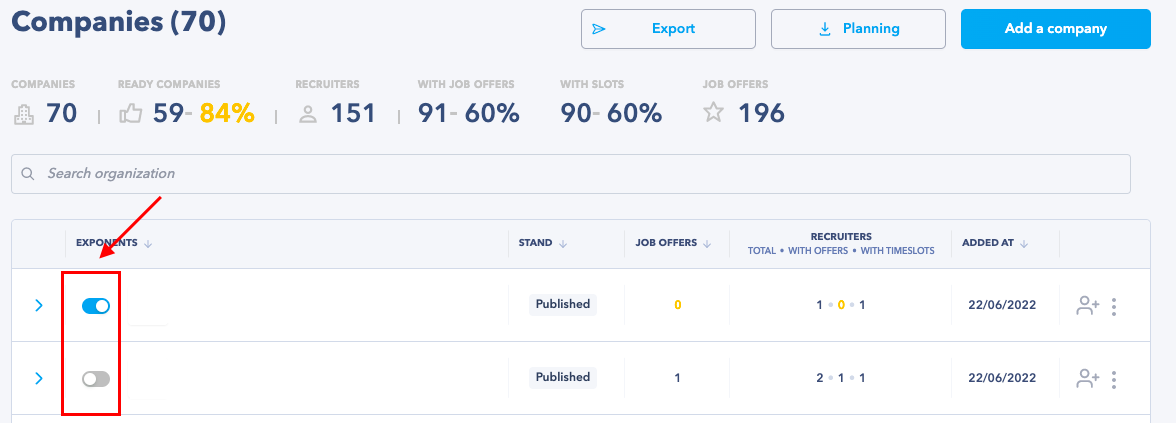
💡 Depending on the terms of participation for your event defined with your Seekube project manager, your participating companies can be considered "ready" if they have just published a stand and created a live session.
PUBLISHING THE COMPANY STAND
A company stand must be completed so that candidates can find the company. To check if a company stand has been published, look in the Stand column:
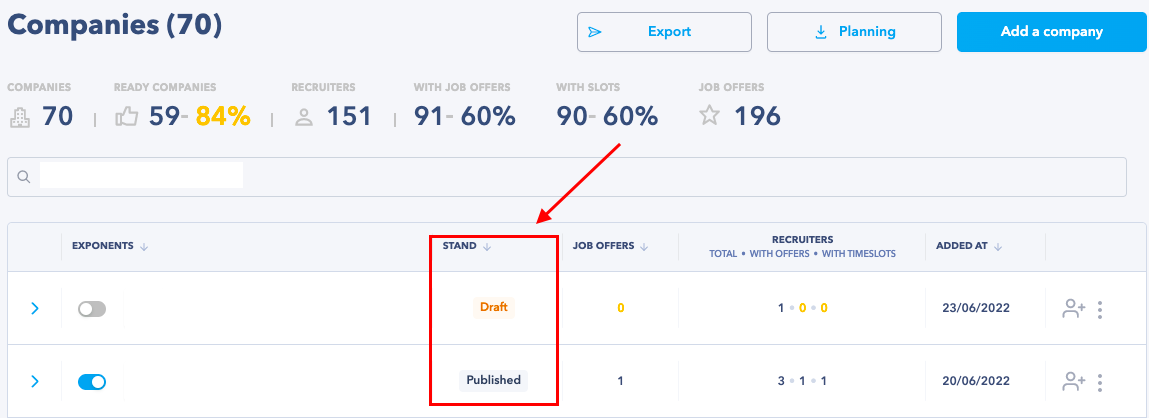
👉 If it says Draft, the company still has to complete and publish its stand. This step is mandatory so that the recruiters from this company can meet with candidates!
POSTING AT LEAST ONE JOB
To be able to meet with candidates, at least one team member on the stand must have posted a job (and added time slots to their calendar).
You can see how many jobs a company has published in the Job Offers column:
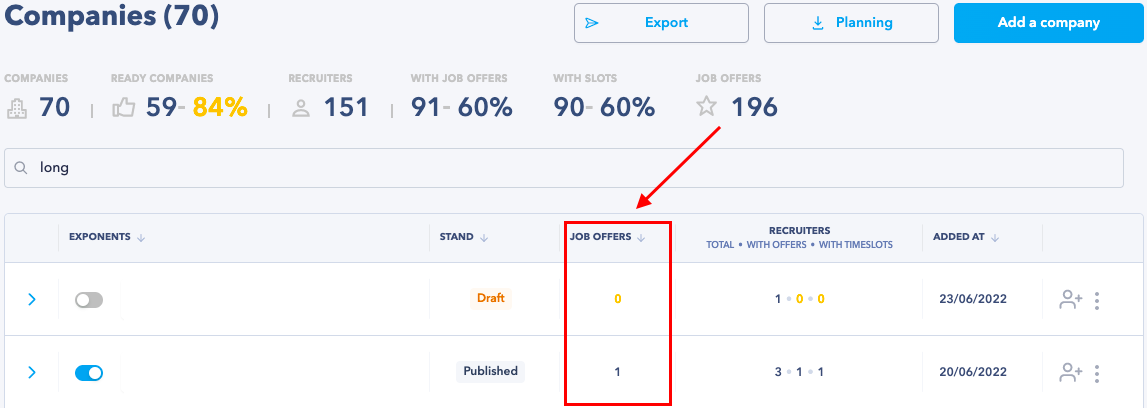
👉 If it says 0 (zero), the company still has to post at least one job. This step is mandatory so that candidates can find this company and its job offers!
ADDING TIME SLOTS TO THE CALENDAR
Adding availability slots to the calendar allows candidates to make appointments with the recruiters interviewing for one or more jobs.
Check if the recruiters have entered their availability by clicking on the “>” sign to open the members' details and viewing the recruiters' records:
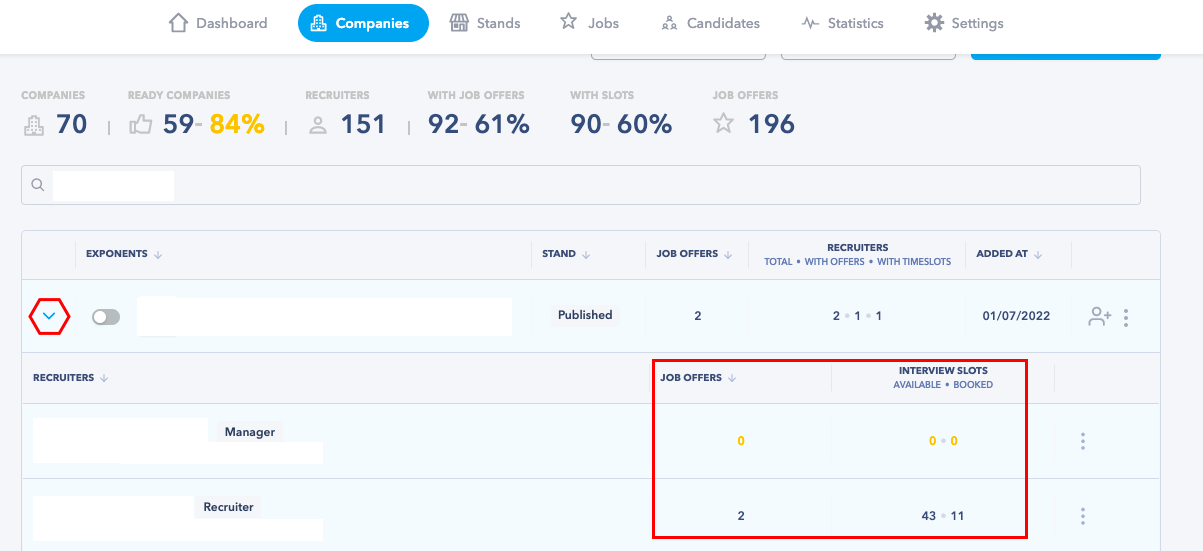
💡 This detailed view also shows you how many jobs each recruiter has posted. Don't forget, a recruiter cannot meet candidates unless they have posted their jobs AND time slots in their profile.
🚨 IMPORTANT NOTE!
- A recruiter with job offers but no time slots can be found by candidates but will NOT be able to receive appointment requests (only contact candidates on the waiting list).
- A recruiter with time slots but no job offers will NOT be visible to candidates.
- A company whose stand has been published with no job offers or time slots will NOT be able to receive appointment requests (but the stand will still be visible to candidates on the Companies tab).
SENDING REMINDERS TO RECRUITERS WHO ARE NOT READY
👉 RESENDING THE INVITATION EMAIL TO A RECRUITER
Anyone without a Seekube account must complete their registration and profile using the invitation link sent to them when they were added to an event.
If they did not receive this email or cannot find it, you can send it to them again:
- Go to the Companies tab of your organiser dashboard.
- In the search box, type the email address or the name of the company the team member belongs to.
- Open the team details by clicking on the “>” sign next to the exponent’s name, pass your cursor on the three small dots on the line of the person you want to resend the invitation to and select Resend Invitation Email:
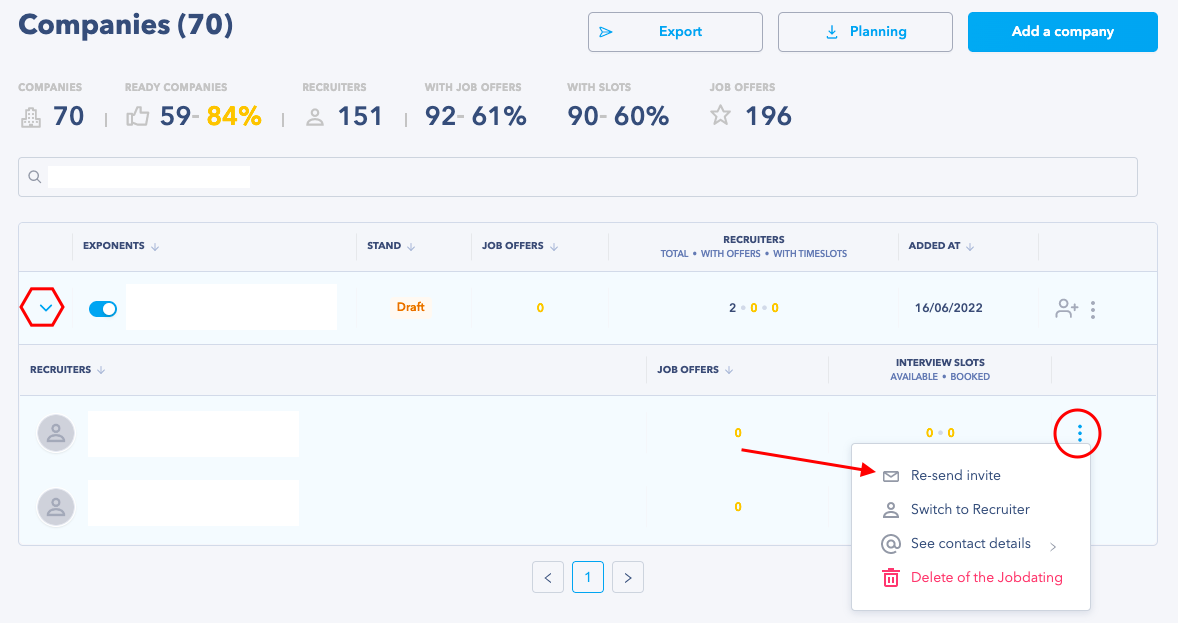
🚨 You cannot resend the invitation email to users who already have a completed account on the platform; they must log in directly via seekube.com with their email address and password.
👉 SENDING A GROUP REMINDER EMAIL
To send a reminder email to recruiters who are not ready yet and prompt them to complete their preparation, you first have to extract the list of people to contact as follows:
- From the Companies tab on your organiser dashboard, click on the Export button and select Export All Unprepared Recruiters:
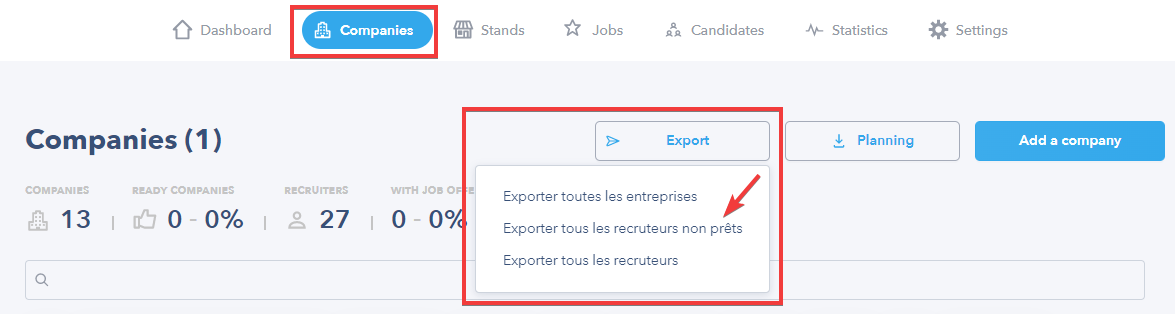
- A webpage will open on a new tab with a list of all the recruiters who have not yet posted jobs and/or time slots in their calendar.
- Copy and paste this list into an Excel spreadsheet (CTRL/Cmd A to select all + CTRL/Cmd C to copy and CTRL/Cmd V to paste) to be able to use the document and send your reminder emails.
⭐️ The aim is for at least 80% of companies to be ready before the candidates log in to the platform.
💡 Once you reach the week before the candidates are due at your event, telephone reminders are better. Companies usually react more favourably to a phone call.
🖇 Feel free to navigate the Help Center created for your recruiters and candidates via this link : help.seekube.com !