
Depending on the settings you defined with your Seekube project manager, you can publish and/or allow participating companies to publish live conference at your event.
You can choose to:
- Allow your companies to publish their live sessions independently
- AND/OR publish conferences yourself at the event (whether they're organised by you or your participating companies).
💡 An article is available to show your partner companies how to create and publish live sessions at an event. Send them the following link →https://help.seekube.com/en/articles/4738708-creating-a-live-conference-at-a-job-dating-event
TYPES OF LIVE SESSIONS
Seekube allows you to interact with candidates using one of these three conference formats:
| ROUND TABLE | WEBINAR | LIVE CHAT | |
| Max. no. of participants | 15 | 100 | 200 |
| Max. no. of speakers | 9 | 9 | 9 |
|
Maximum duration (without freezing) |
90 min | 90 min | 90 min |
🚨 If you choose to use our default tool BigMarker, please read the table below (or familiarise yourself with the features of your chosen video conferencing tool):
| ROUND TABLE | WEBINAR | LIVE CHAT | |
| Participants: microphone + camera | ✅ |
❌ (via chat) |
❌ |
| Speakers: microphone + camera | ✅ | ✅ | ❌ |
| Screen and file sharing | ✅ | ✅ | ❌ |
CREATING A LIVE SESSION
💡 If a conference is created when the candidates are already attending the event, a notification will be emailed to them.
- Once you have logged in to your Seekube account, go to the homepage and click on Admin Access on the event card to access the organiser dashboard.
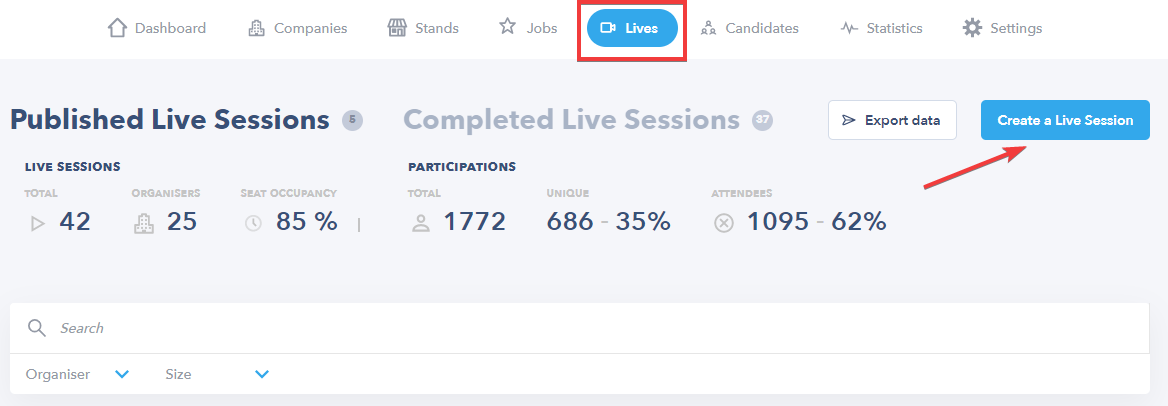
- Go to the Live Sessions/Conferences tab and click on Create Live Session:
- Choose the format of your live session from the 3 types available (you'll find details of these in the first part of this article).
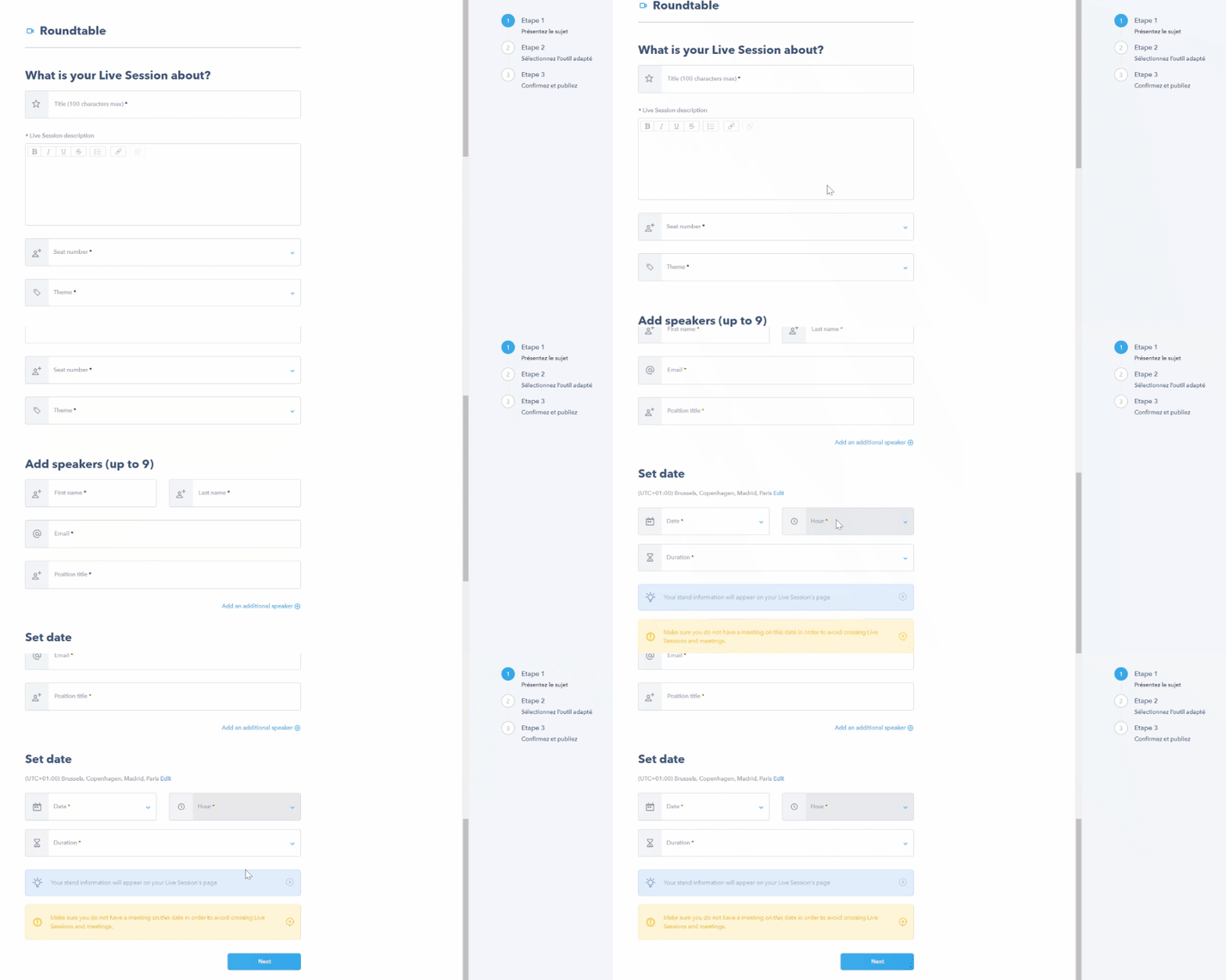
- Next, fill in all the information about your live session:
⭐️ Don't know what to call your live session? Read this document for our tips on best practices to make your conference more attractive!
- You will then be invited to select which live session tool to use: BigMarker (our default external tool) or the external tool of your choice (Teams, Zoom, Google Meet, etc).
💡 The speakers you add to your live session do not need a Seekube account; the link to the conference will be emailed to them.
TOOL SELECTION
🚨 To avoid any glitches caused by firewall issues, we recommend you use an internal tool and/or one your speaker is familiar with.
👉 OTHER TOOLS (Teams, Zoom, etc)
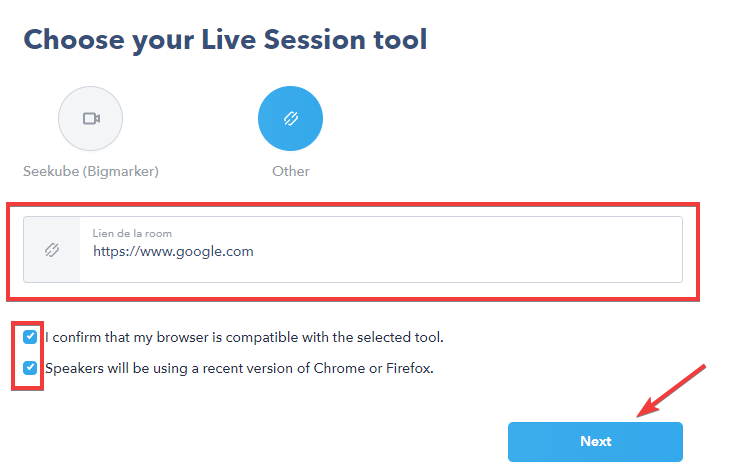
At the tool selection step, after completing the information about your live session, select Other.
- Copy and paste the conference link into the other tool so that participants can join the live session on the day.
- Check the boxes and click on Next:
- When you reach the final summary step, make sure all the information is correct and click on Publish.
- Your live session has now been published and the speaker(s) will be emailed the conference link!
👉 BIGMARKER (default tool)
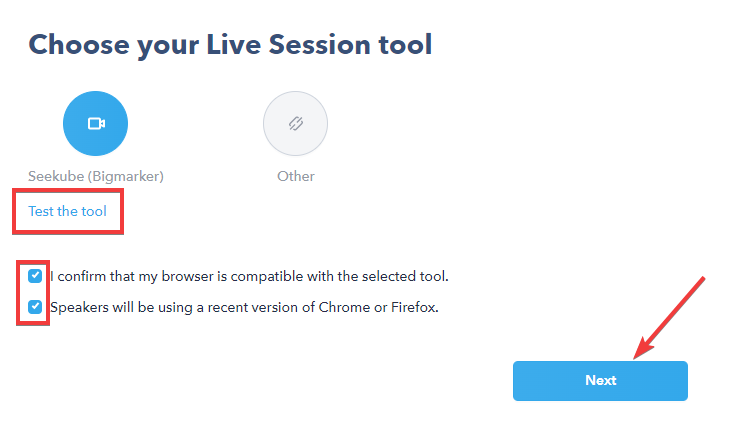
At the tool selection step, after completing the information about the live session, select Seekube (BigMarker).
- Test your equipment and connection by clicking on Test Tool (the speakers will also be emailed a test link).
- Check the boxes and click on Next:
- When you reach the final summary step, make sure all the information is correct and click on Publish.
- Your live session has now been published and the speaker(s) will be emailed the conference link!
🚨 If your participating companies are organising their live sessions themselves using BigMarker, they must test the tool and network they will use on the day in advance via this link.
💡 To find out more about our default tool, feel free to read this guide; we can also give you some tips to help ensure your conference runs smoothly.
🖇 Feel free to navigate the Help Center created for your recruiters and candidates via this link : help.seekube.com !