
💡 To ensure your live session is successful, feel free to follow our best practice advice by reading this article.
You now have the option of duplicating an existing live session.
WHERE DO I GO TO DUPLICATE A LIVE SESSION?
Head over to the “Live Sessions” tab. Click on the three small dots for the session you want to copy, and click “Duplicate Live Session”:
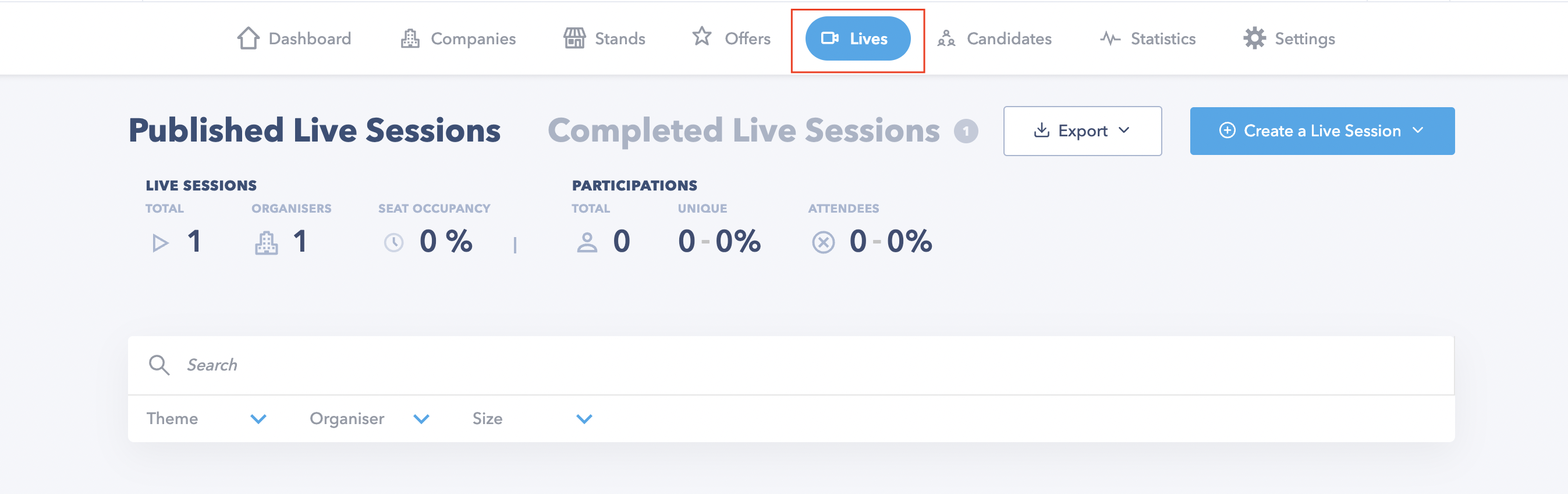
🚨 If the Live Sessions/Conferences tab does not appear, it means this feature has not been enabled by the organisers of the job dating event.
STEP 1
Once you click on “Duplicate Live Session”, the new session module pops up complete with pre-filled fields:
· All the settings for your chosen tool are identical
· The organiser and event hosts are identical
🚨 The date/time/duration fields are empty and have to be updated. You will need to fill these in to post your new live session.
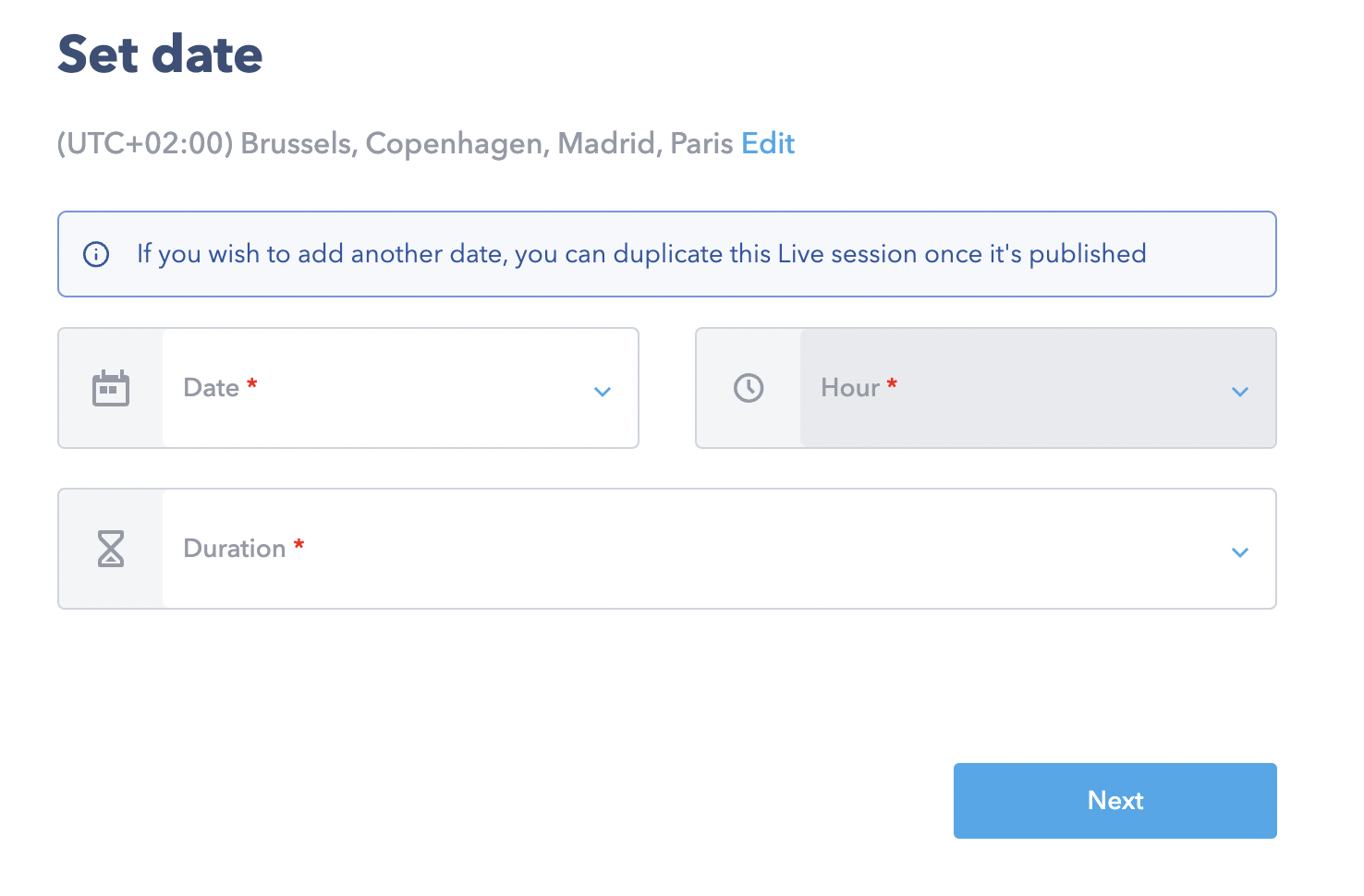
📆 Live sessions are synced to the Seekube hosts’ calendars. This means that if you choose a slot where an interview time slot has already been scheduled, you won’t be able to schedule your live session in this slot.
STEP 2
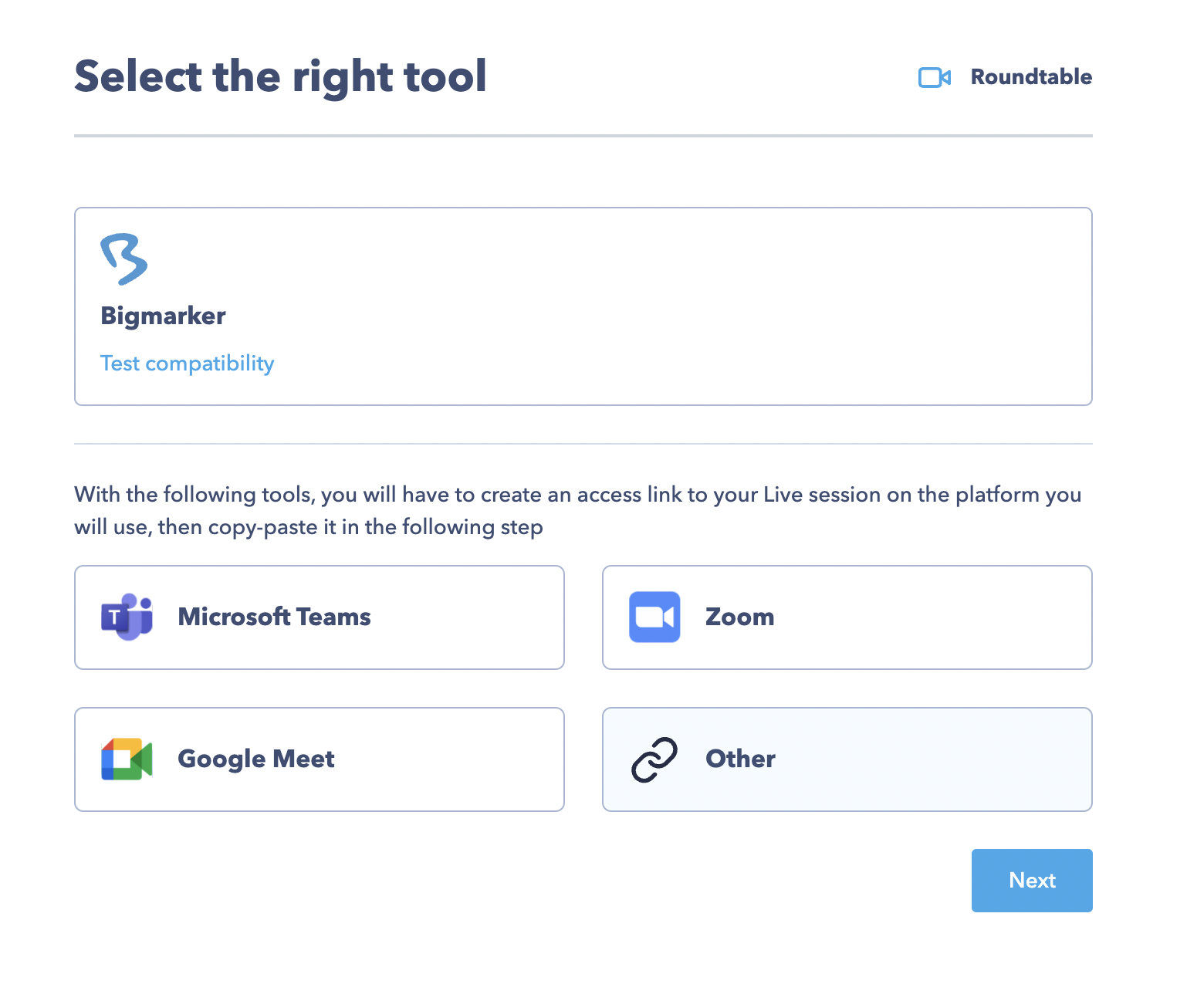
You will now need to choose the tool you want to use for your live session. You can use the same tool or pick a new one.
STEP 3
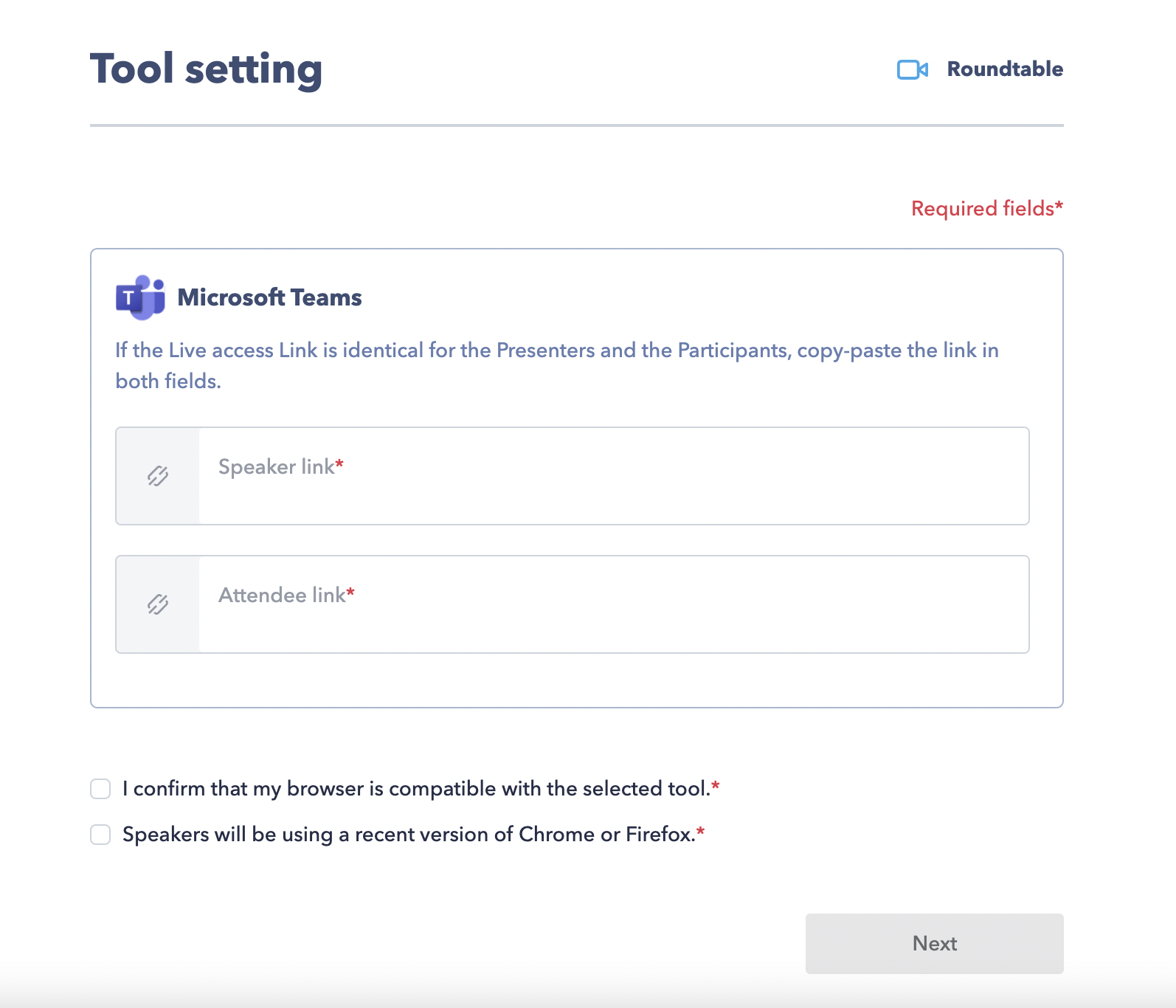
🚨 The link fields have to be updated.
STEP 4
Now you’re ready to publishing your live session! 🎙
So, now you know all about publishing live sessions on Seekube! Don't forget to read our advice on how to make sure your conference goes smoothly. 🤗
recruiters participating in your event the Help Centre link dedicated to them.