
From the Live Sessions tab (or Conferences or Workshops, depending on the title you chose with your Seekube project manager) on your organiser dashboard, you can easily track data on the live conferences published at your event.
CANDIDATE REGISTRATIONS AT LIVE SESSIONS
Before they can take part in a live session, candidates have to register in the Live Sessions section of the platform.
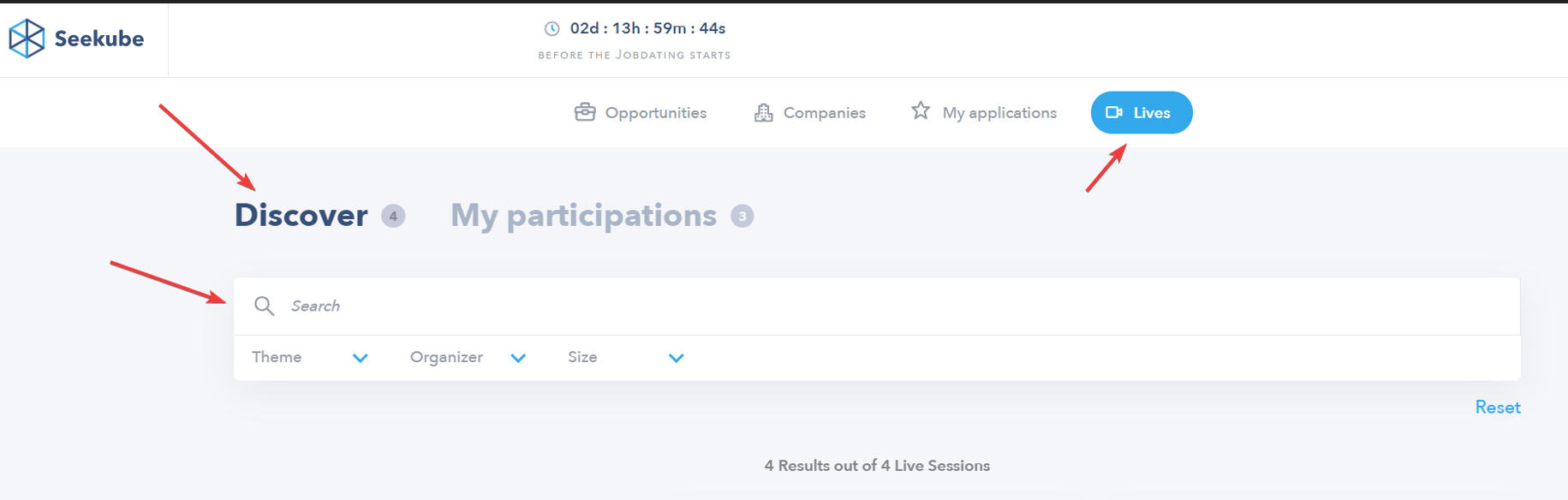
The Explore tab allows them to view, search and filter (by keyword, topic, organiser and size) all the conferences published at the event:
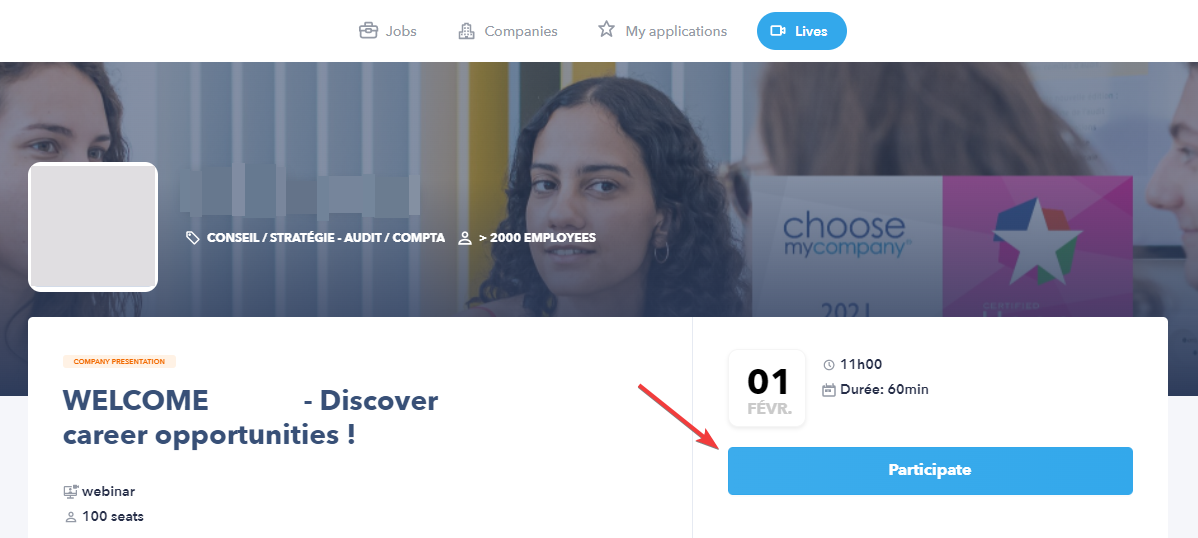
- Once they are on the conference page, they just have to click on Participate to register for the live session:
⭐️ After registering, candidates receive a confirmation email with the conference link. They will also receive a reminder email one day before the live session and a reminder SMS one hour before the start of the conference.
💡 An article is available for candidates who would like to know more about taking part in conferences. Send them the following link → https://intercom.help/seekube/en/articles/4704189-participating-in-live-sessions
STATISTICS AND MEASURING PARTICIPATION
The header of your Live Sessions (or Conferences or Workshops) tab shows you all the statistics about the conferences published at your event, including:
- Total live sessions published.
- Number of unique companies that published at least one live session.
- The attendance rate at all conferences (number registered out of number of places available).
- Total number of registrations at all live sessions.
- Number of unique candidates registered for at least one live session (+ percentage of all participants at the job fair).
- Number of unique candidates who took part in at least one live session (+ percentage of all participants at the job fair).

👉 The Data Export button can be used to download all the information about live conferences published at your event in Excel format (.xlsx).
VIEWING THE LIST OF PARTICIPANTS AT A CONFERENCE
If you want to view the list of registered candidates and find out who did and did not attend a specific live session:
- Go to the "published" or "completed" section of the Live Sessions (or Conferences or Workshops) tab on your organiser dashboard and use the search box and/or filters to find the conference you want.
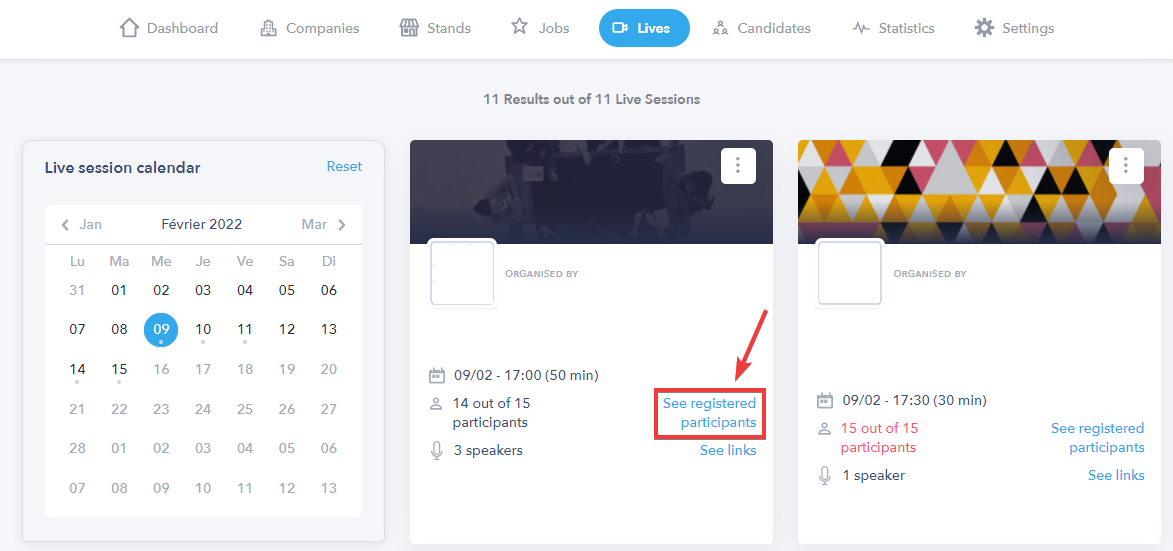
- Click on See Participants on the conference card:
- The Registered Candidates section shows everyone who intended to take part by registering for the live session:
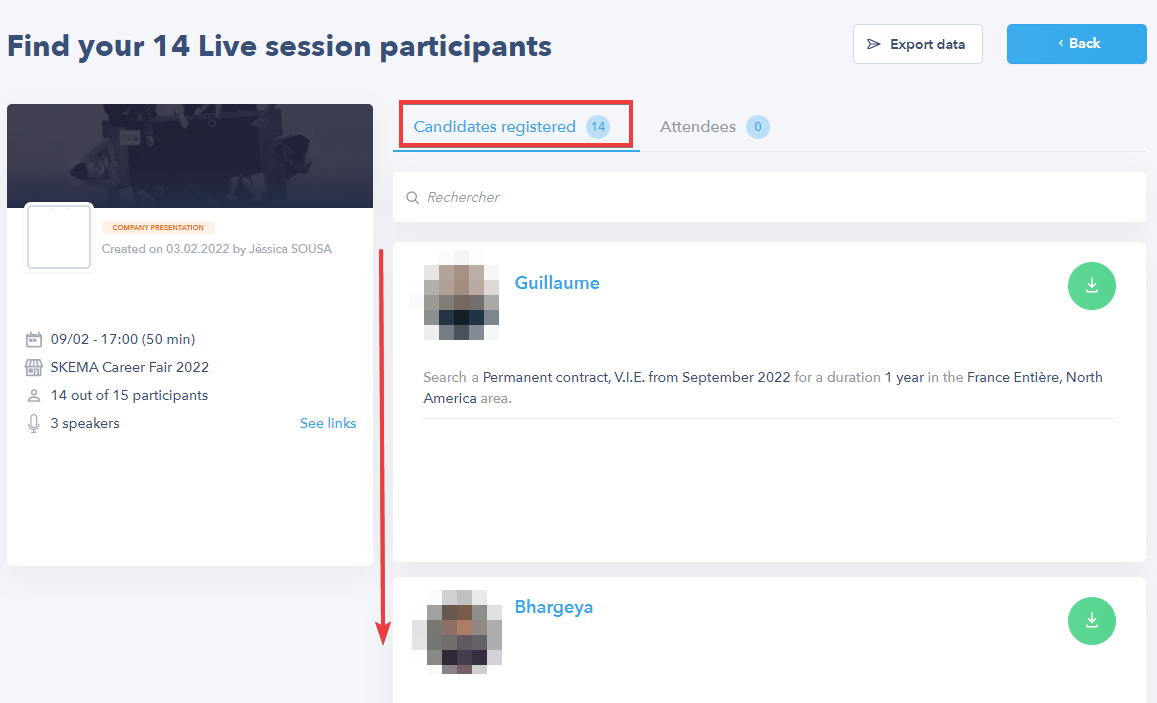
💡 The No Show and Present labels allow you to quickly identify candidates who were absent or present at the conference; you can retrieve their email addresses by exporting the data or clicking on their names to open their respective records.
- In addition to the labels on the candidate cards, the Candidates Present section allows you to see only those candidates who took part in the conference.
💡 A candidate is considered to "have participated" from the moment they click on the live session access link.
👉 The Data Export button can be used to download all the information about the candidates registered for a particular live session in Excel format (.xlsx); in this document you will find the list of email addresses of any conference no-shows.
🖇 Feel free to navigate the Help Center created for your recruiters and candidates via this link : help.seekube.com !